
Error Source 1: Incorrect Consultant Number
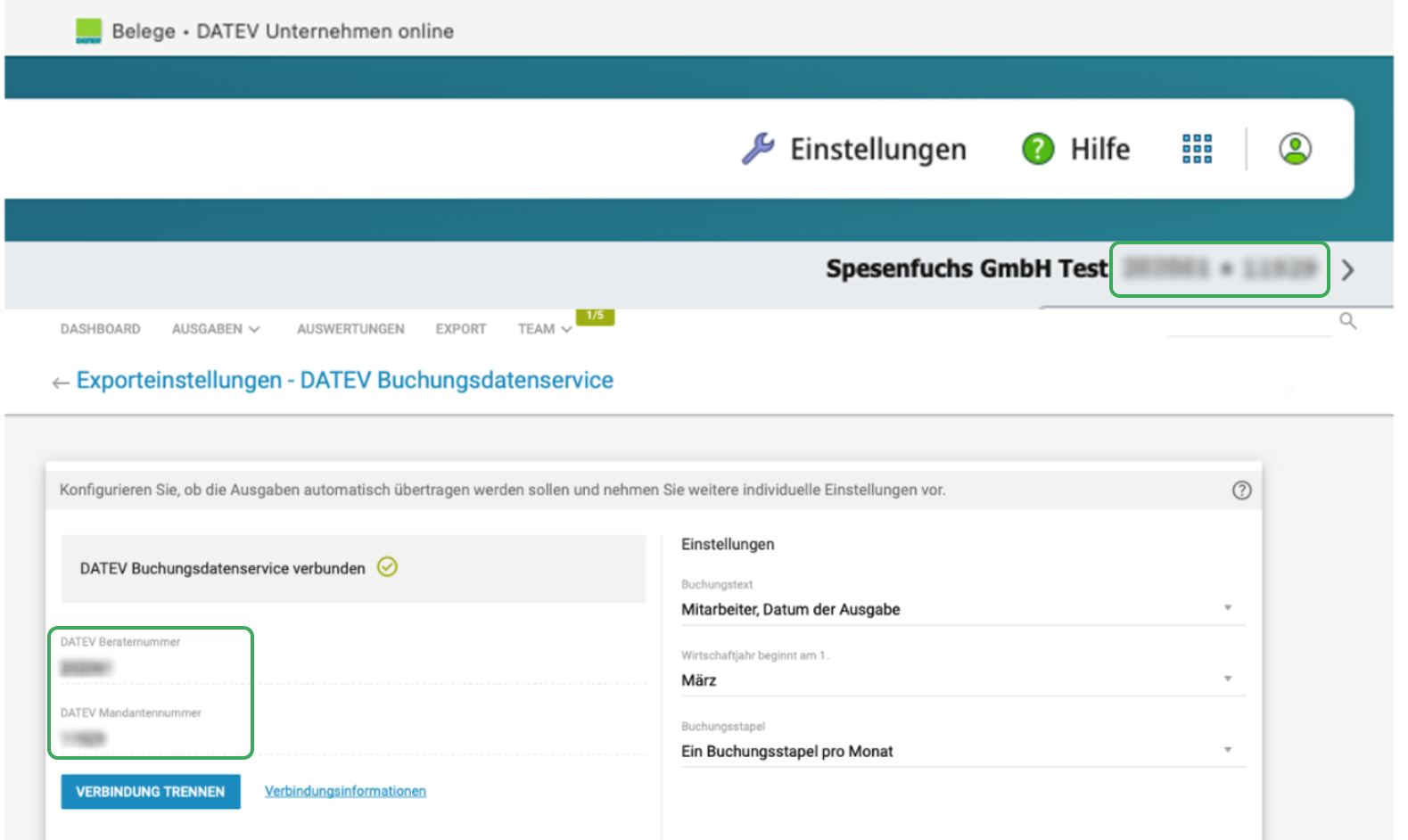
During the initial setup of the DATEV interface in Spesenfuchs, you must enter the Consultant Number and Client Number in the export settings.
A common issue occurs when, for example, the accounting data in DATEV Kanzlei-Rechnungswesen is assigned to consultant number 111111, while 111112 (a sub-consultant number) is entered in Spesenfuchs, or vice versa.
The consultant number entered in Spesenfuchs must always be the one under which the company (Bestand) is created in DATEV Unternehmen Online (DUO).
In many cases, Rechnungsdatenservice 1.0 or Buchungsdatenservice is licensed for a sub-consultant number, while the company itself is assigned to the standard consultant number.
If Rechnungsdatenservice 1.0 or Buchungsdatenservice is licensed for a sub-consultant number, but the company is created under the standard consultant number, you must enter the standard consultant number in Spesenfuchs.
If the company in DATEV Unternehmen Online (DUO) is created under a sub-consultant number, you must also enter this sub-consultant number as the consultant number in Spesenfuchs.
The Consultant Number and Client Number stored in Spesenfuchs must exactly match the Consultant Number and Client Number used in DATEV Unternehmen Online (DUO).
Error Source 2: Missing MyDATEV Client Registration
A common issue is that Buchungsdatenservice or Rechnungsdatenservice 1.0 is generally available for all clients, but the required permissions to use the service have not yet been granted.
If Buchungsdatenservice or Rechnungsdatenservice 1.0 has not previously been set up through the MyDATEV Client Registration (MyDATEV Mandantenregistrierung), an additional registration is required.
If you are unsure, it is safe to complete the MyDATEV Client Registration process again.
In addition, the required permissions must be assigned to the relevant users. A DATEV administrator can grant these permissions under:
Anwendungen → Administration → Rechteverwaltung online
There, the appropriate service (Buchungsdatenservice or Rechnungsdatenservice 1.0) must be enabled for the user.
You can find a video explaining the MyDATEV Client Registration process here.
Error Source 3: Fiscal Year Mismatch
For a successful data transfer, the fiscal year configured in DATEV must exactly match the fiscal year configured in Spesenfuchs.
Please ensure that both systems are set to the same fiscal year.
Spesenfuchs supports only fiscal years that begin on the first day of a month.
Additional DATEV Error Messages
If you receive an error while transferring data to DATEV, the following overview will help you either resolve the issue yourself or identify the correct point of contact (Spesenfuchs Support, your tax advisor, or DATEV).